iPad for seniors: how to set one up for an elderly parent
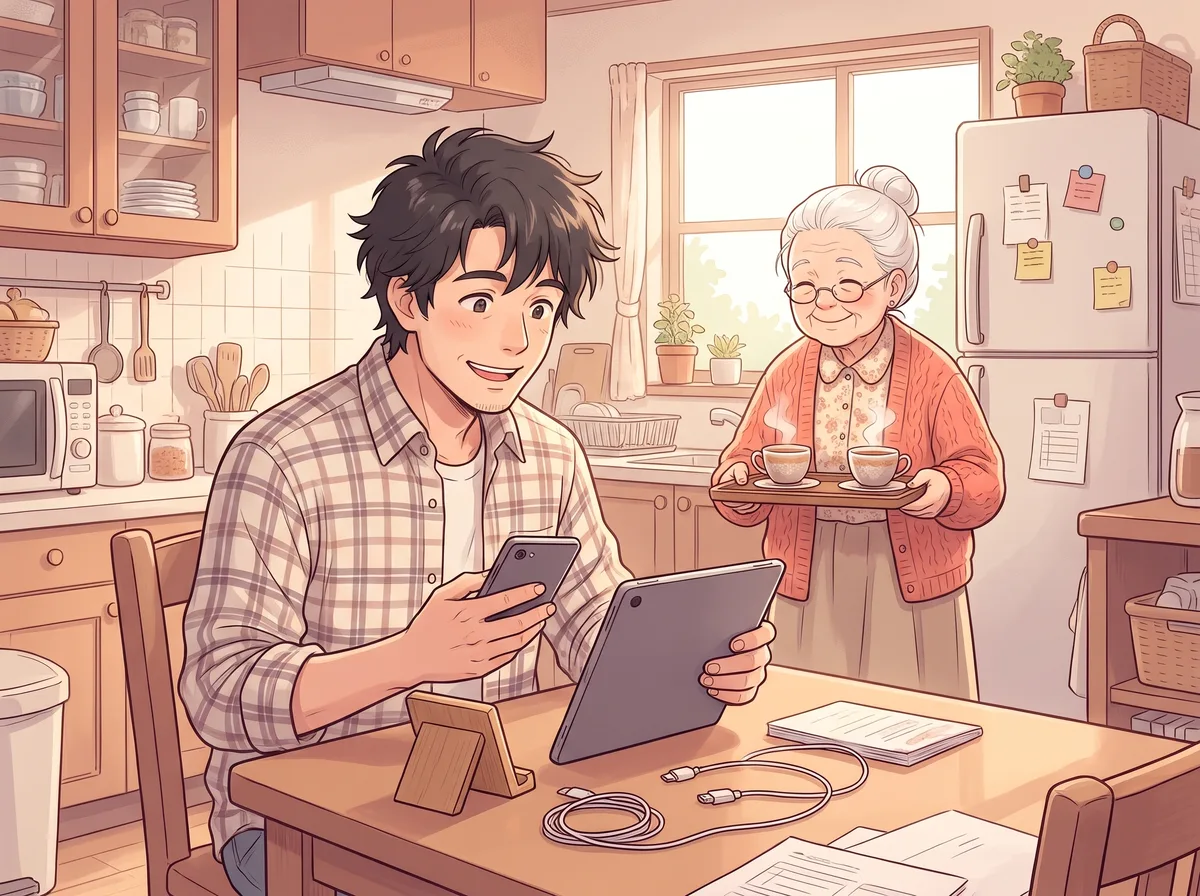
An iPad is a good tablet for an older person once it has been simplified. Twenty minutes of setup, done by you, saves her months of small frustrations. Here is what to change, in order.
Updated November 22, 2026
First, make the iPad calmer and easier to read
Update and tidy up
Install the latest iPadOS the tablet supports, then turn on automatic updates in Settings, General, Software Update. Delete the apps she will never open, so the first screen holds only what she uses.
Make the text larger
Go to Settings, Display & Brightness, Text Size and drag the slider. For even larger letters, open Settings, Accessibility, Display & Text Size, Larger Text. Bold Text, on the same screen, helps too.
Turn off what interrupts
In Settings, Notifications, switch off notifications for every app that does not matter to her. Fewer banners means fewer moments of “what did I press?”.
Decide about the passcode together
A passcode she cannot remember is a locked door. Talk about whether the tablet needs one at home, and choose with her.
Guided Access: keep the iPad on one app
Guided Access is built into every iPad. It locks the tablet on a single app, so a stray swipe cannot send her to a screen she does not know. It is the most useful setting for a parent who gets lost easily.
Turn it on
Open Settings, Accessibility, Guided Access and switch it on.
Set a passcode the family knows
In Passcode Settings, set a Guided Access passcode. It is for you, not for her. Share it with whoever helps on site.
Start it in the app
Open the app she will use. Triple-click the top button, or the Home button on iPads that have one, then tap Start.
End it when you need to
Triple-click again, enter the passcode and tap End.
Recent versions of iPadOS also offer Assistive Access, a simplified layout with large buttons for a few chosen apps. It suits a parent who wants more than calls and can manage a short menu.
Where a well-set iPad still falls short
Even simplified, an iPad expects a lot during a video call. She has to hear the ring, find the right button and answer in time. Regular video apps need an account and sometimes ask her to sign in again. And when the volume ends up at zero, you cannot fix it from your home.
These are the moments when families give up and go back to the telephone.
Add GrandmaCall for the calls
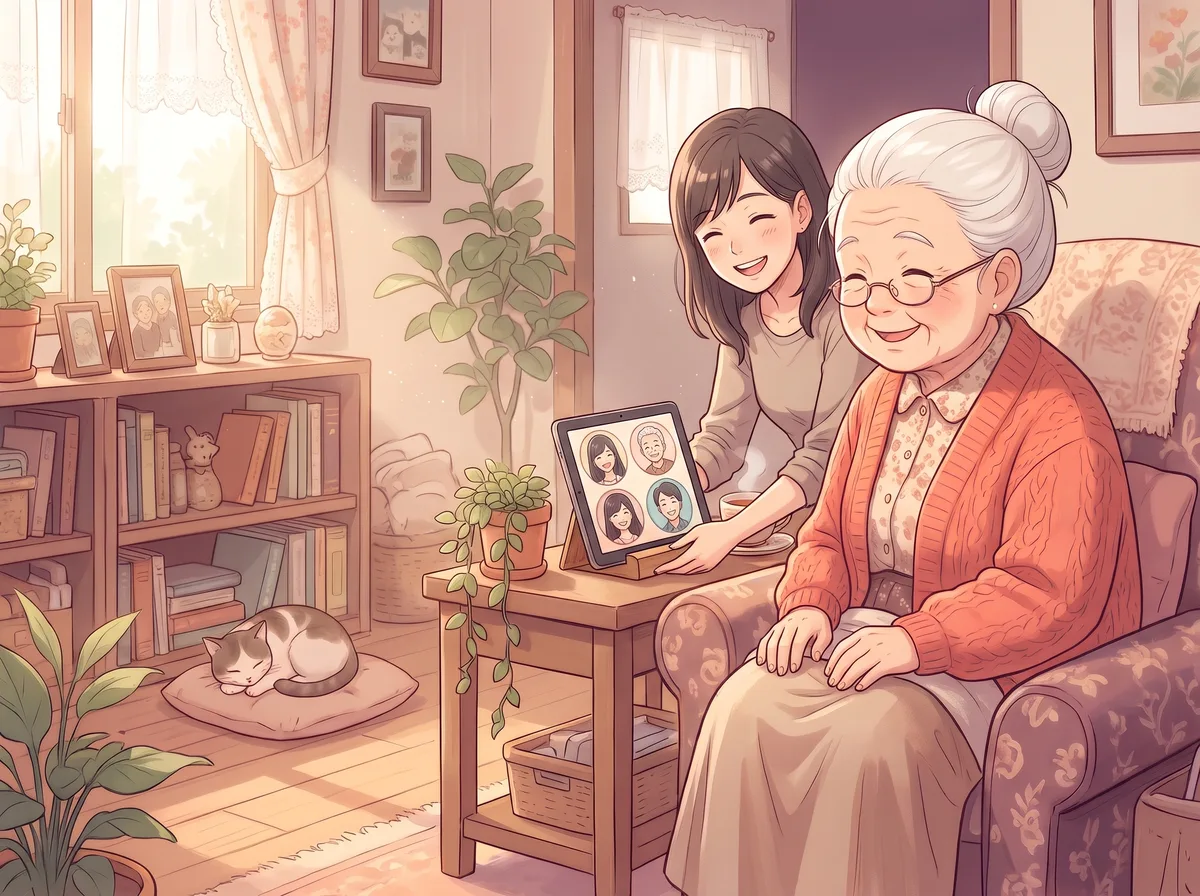
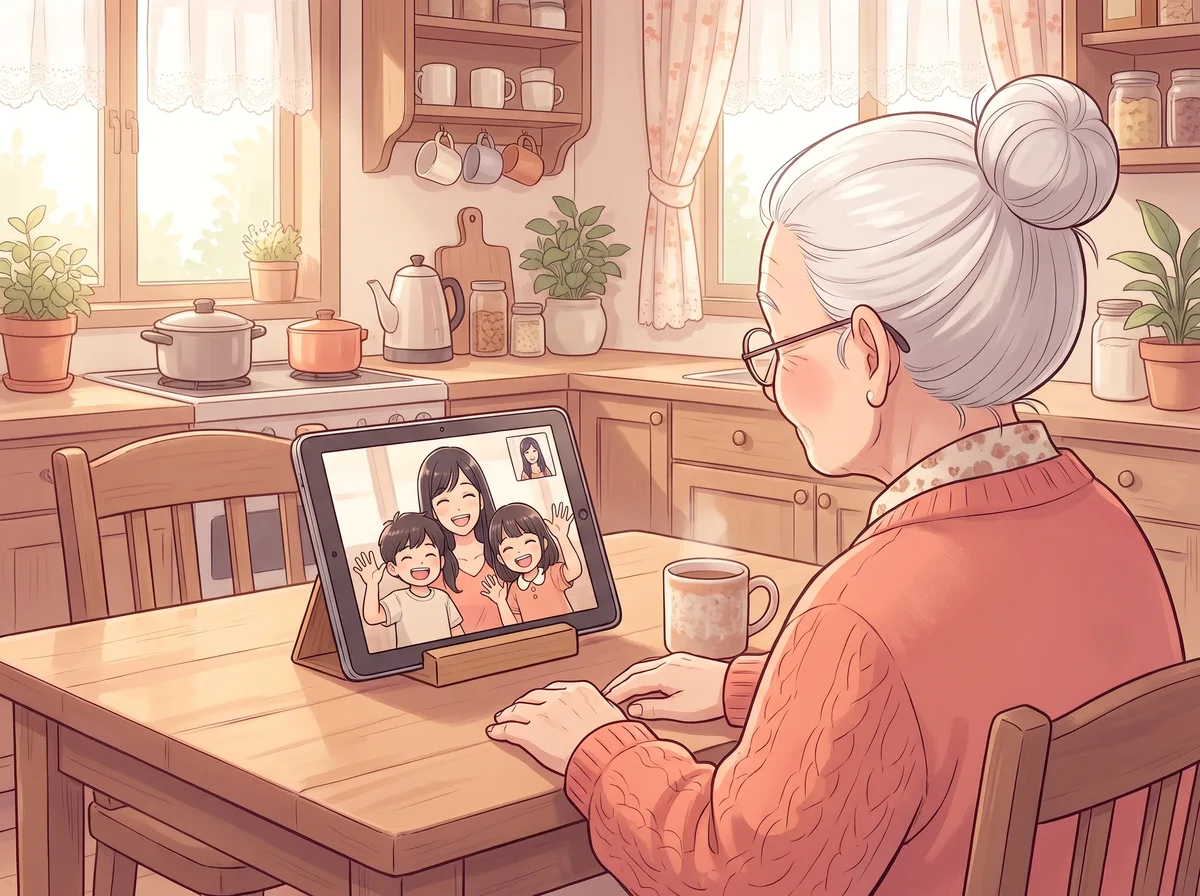
GrandmaCall turns the iPad into a video phone with one screen. In “Grandma mode”, she sees up to four faces and touches one to call. When a trusted family member calls her, the tablet rings, shows who is calling, then opens the call by itself after a few rings. She can always say “Not now” with one touch.
- No account and no password for her inside the app
- Ring volume, text size and quiet hours set from your phone
- A family photo frame when nobody is calling
- An alert if the iPad goes offline or gets unplugged
During setup, the app walks you through Guided Access so the iPad stays on that screen. If you do not have an iPad, the same idea works with the tablet you already own, Android included.
What is free and what is not
Calling is always free, with one family member and five photos. Calls that open by themselves, up to eight family members, 200 photos, urgent calls at night and alerts are part of the Family plan, from $3.99 a month. You start with 30 days of everything, no card needed, so you can see what she really uses.
GrandmaCall is not a medical device or an emergency alarm.
Common questions
Which iPad is best for an elderly parent?
Any iPad from roughly the last six years. The standard size is easier to see than the small one. Choose a model with mobile data only if there is no Wi-Fi where she lives.
Does she need her own Apple account?
The iPad needs an Apple account to install apps from the App Store. You can sign in during setup, and she never has to type it. Inside GrandmaCall, she has no account and no password.
What if she presses the wrong button?
With Guided Access on, the buttons that leave the app do nothing. The iPad stays on the screen you chose until someone enters the Guided Access passcode.
Can I change the iPad's settings from far away?
Not the iPad's own settings. What you can change from your phone is everything inside GrandmaCall: who can call, ring volume, text size and quiet hours.
Is GrandmaCall available now?
Not yet. The first version is in testing. Leave your email and we will write to you when it opens on the App Store and Google Play.